
Get the best graphics card deals, upgrade solutions, and repair services. Call 9315781670 today for expert support, fast service, and affordable pricing.
Table of Contents
Introduction
In today’s digital world, a graphics card plays a major role in delivering high-quality visuals, fast gaming performance, smooth video editing, and professional design work. Whether you are a gamer, video editor, architect, animator, or business owner, choosing the right hardware can improve your system performance dramatically. Along with buying the right GPU, proper repair and maintenance services are also important for long-term performance.
If you are searching for affordable upgrades, reliable repair solutions, or professional support, this complete guide will help you understand everything about a graphics card, including features, benefits, repair tips, common problems, and the best ways to choose the right option for your needs{1}.
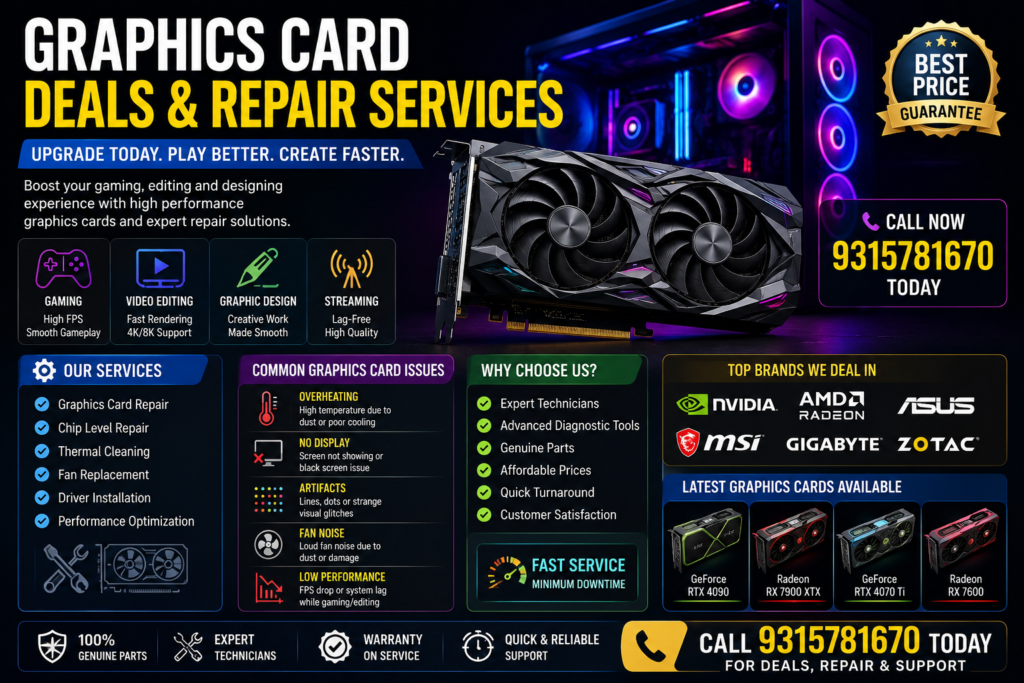
What Is a Graphics Card?
A graphics card is a hardware component installed inside a computer or laptop to process visual data. It improves image quality, gaming speed, rendering performance, and multimedia processing. Modern GPUs are designed to handle complex tasks such as 3D rendering, AI processing, video editing, and high-end gaming.
Without a powerful GPU, your computer may struggle with heavy applications, causing lag, low frame rates, and overheating issues.
Why a Graphics Card Is Important in 2026
Technology is evolving rapidly, and software requirements are becoming more demanding. A high-performance graphics card is now essential for.
- Gaming
- Video editing
- Live streaming
- Graphic design
- Animation
- Architecture software
- AI tools
- Crypto calculations
- 4K video playback
Modern applications require more graphical power than ever before. Investing in a quality GPU ensures better speed and smoother multitasking.
Types of Graphics Card Available Today
Different users have different performance requirements. Here are the major types of GPU options available in the market.
| Type | Best For | Performance Level |
|---|---|---|
| Integrated GPU | Basic users | Low |
| Entry-Level GPU | Office & multimedia | Medium |
| Gaming GPU | Gamers | High |
| Workstation GPU | Professionals | Very High |
| AI/Rendering GPU | Developers & creators | Extreme |
Understanding your usage helps you select the perfect graphics card without overspending.
Best Uses of a Graphics Card
A powerful graphics card can improve performance across multiple industries and activities.
Gaming Experience
Gaming GPUs deliver
- High FPS
- Better textures
- Ray tracing
- Smooth gameplay
- Ultra graphics settings
Modern games require advanced GPU technology for the best experience.
Video Editing
Video editors use GPUs for.
- Faster rendering
- Real-time preview
- 4K editing
- Motion graphics
Professional editors rely heavily on a quality graphics card for smooth workflow.
Graphic Designing
Design software like Photoshop, Illustrator, Blender, and After Effects runs more efficiently with GPU acceleration.
Streaming & Content Creation
Content creators need strong GPUs for.
- Streaming
- Recording
- Live editing
- Fast exports
Signs Your Graphics Card Needs Repair
Over time, GPUs may develop technical issues. Here are common signs that indicate repair is needed.
Screen Flickering
Random flickering may indicate GPU failure or overheating.
Blue Screen Errors
Frequent crashes while gaming or editing can be related to GPU drivers or hardware issues.
Overheating
High temperatures reduce GPU lifespan and performance.
Display Distortion
Artifacts, colored lines, or blurry visuals are warning signs.
Fan Noise
Loud GPU fans often indicate dust buildup or cooling problems.
Low FPS Performance
Sudden performance drops may signal hardware damage.
Common Graphics Card Problems and Solutions
| Problem | Possible Cause | Solution |
|---|---|---|
| Overheating | Dust or bad cooling | Cleaning & thermal paste |
| No Display | GPU failure | Repair or replacement |
| Driver Crash | Outdated drivers | Driver update |
| Low FPS | Insufficient power | PSU upgrade |
| Fan Noise | Dust accumulation | Fan servicing |
Regular maintenance keeps your graphics card functioning properly for years.
How to Choose the Right Graphics Card
Selecting the ideal GPU depends on your work requirements and budget.
Check Your Purpose
Ask yourself:
- Gaming?
- Video editing?
- Office work?
- 3D rendering?
Your purpose determines the type of graphics card you need.
Compare VRAM
More VRAM helps with.
- High-resolution gaming
- 3D rendering
- Multi-monitor setups
Check Compatibility
Ensure your:
- Motherboard
- Power supply
- Cabinet size
can support the GPU.
Compare Cooling Systems
Good cooling prevents overheating and increases GPU life.
Choose Trusted Brands
Reliable GPU brands provide
- Better durability
- Warranty support
- Driver updates
Popular Graphics Card Brands in India
Several trusted companies dominate the GPU market.
NVIDIA
Known for
- Gaming GPUs
- AI features
- Ray tracing
- DLSS technology
AMD Radeon
Popular for
- Budget-friendly performance
- Strong gaming support
- Competitive pricing
Intel Arc
Growing rapidly with modern GPU innovations.
Latest Graphics Card Trends in 2026
Technology continues evolving quickly. Some major trends include:
AI-Powered GPUs
AI acceleration improves rendering and productivity.
Ray Tracing
Realistic lighting and reflections are becoming standard.
Energy-Efficient Designs
New GPUs consume less power while delivering higher performance.
Compact GPUs
Small-size GPUs are becoming popular for mini PCs.
Graphics Card Repair Services Explained
Professional GPU repair services help restore performance and save replacement costs.
Diagnostic Testing
Experts identify
- Power issues
- Memory faults
- PCB damage
- Fan problems
Thermal Maintenance
Cleaning and thermal paste replacement improve cooling efficiency.
Chip-Level Repair
Advanced technicians can repair GPU circuits and components.
Driver Optimization
Software optimization improves GPU stability.
Why Professional Graphics Card Repair Matters
DIY repair attempts can sometimes worsen the damage. Professional services provider{2}.
- Safe repair methods
- Proper testing
- Genuine spare parts
- Long-term reliability
Expert repair ensures your graphics card performs efficiently after servicing.
Gaming Graphics Card Buying Guide
Gamers should focus on
FPS Performance
Higher FPS creates smoother gameplay.
Ray Tracing Support
Modern games look more realistic with ray tracing.
VRAM Capacity
8GB or higher VRAM is recommended for new games.
Cooling Technology
Better cooling means better gaming stability.
Graphics Card for Students and Creators
Students and creators often require budget-friendly GPUs.
Best for Online Classes
Entry-level GPUs handle
- Video streaming
- Basic editing
- Presentations
Best for Designers
Mid-range GPUs work well for
- Adobe software
- 3D modeling
- Animation
Best for YouTubers
Content creators benefit from
- Fast rendering
- Streaming support
- Multi-screen performance
Laptop Graphics Card vs Desktop Graphics Card
| Feature | Laptop GPU | Desktop GPU |
|---|---|---|
| Performance | Medium | High |
| Upgrade Option | Limited | Easy |
| Cooling | Compact | Better |
| Power Usage | Lower | Higher |
| Price | Expensive | Flexible |
Desktop GPUs generally provide stronger performance and easier upgrades.
How to Increase Graphics Card Lifespan
Maintaining your GPU properly can improve durability.
Clean Dust Regularly
Dust blocks airflow and increases temperature.
Monitor Temperature
Avoid running your GPU at extremely high temperatures.
Use a Good Power Supply
Stable power protects GPU components.
Update Drivers
Updated software improves performance and security.
Avoid Overclocking Excessively
Extreme overclocking may damage your graphics card over time.
Graphics Card Upgrade Benefits
Upgrading your GPU offers multiple advantages.
Faster Performance
Modern GPUs process data more efficiently.
Better Gaming Quality
Higher settings and smoother visuals improve gaming experience.
Improved Productivity
Rendering and editing tasks become faster.
Future Compatibility
New GPUs support modern applications and technologies.
Budget-Friendly Graphics Card Options
Not everyone needs an expensive GPU. Budget options are ideal for
- Office users
- Students
- Casual gamers
- Basic editors
Affordable GPUs still deliver decent performance for daily tasks.
Professional Workstation Graphics Card
Workstation GPUs are built for heavy workloads.
Best for:
- CAD design
- 3D rendering
- Animation
- Engineering software
These GPUs prioritize stability and precision.
How Graphics Card Cooling Works
Cooling systems are essential for GPU safety.
Air Cooling
Uses fans and heatsinks.
Liquid Cooling
Advanced cooling for high-performance GPUs.
Hybrid Cooling
Combines air and liquid technologies.
Efficient cooling protects your graphics card from overheating damage.
Graphics Card Installation Tips
Correct installation prevents hardware issues.
Power Off the System
Always disconnect power before installation.
Use Proper PCIe Slot
Install the GPU in the correct motherboard slot.
Connect Power Cables
High-end GPUs require dedicated power connectors.
Install Drivers
Proper drivers ensure stable performance.
Graphics Card Maintenance Checklist
| Maintenance Task | Recommended Frequency |
|---|---|
| Dust Cleaning | Every 3 Months |
| Driver Update | Monthly |
| Thermal Paste Check | Yearly |
| Temperature Monitoring | Weekly |
| Fan Inspection | Every 6 Months |
Regular maintenance improves performance and extends GPU life.
Future of Graphics Card Technology
The future of GPU technology looks extremely exciting.
AI Integration
GPUs will increasingly support AI workloads.
Cloud Gaming Support
Streaming games without powerful local hardware is growing.
Better Energy Efficiency
Manufacturers are focusing on lower power consumption.
Advanced Rendering
Realistic graphics will continue improving rapidly.
Mistakes to Avoid While Buying a Graphics Card
Many buyers make avoidable errors.
Ignoring PSU Requirements
Your power supply must support the GPU.
Buying Beyond Your Needs
Expensive GPUs are unnecessary for basic users.
Ignoring Cabinet Size
Some GPUs are too large for small PC cabinets.
Choosing Poor Cooling
Cheap cooling systems may lead to overheating.
Why Local Graphics Card Repair Services Are Helpful
Local repair experts provide
- Quick service
- Affordable repair
- Personalized support
- Faster diagnostics
Professional repair services can save both time and money.
Graphics Card Services for Businesses
Businesses rely on GPUs for
- Design work
- Surveillance systems
- Video production
- Data processing
Professional GPU support ensures uninterrupted workflow.
Advanced Features in Modern Graphics Card Models
Modern GPUs now include
- AI frame generation
- Ray tracing
- AV1 encoding
- Smart cooling systems
- RGB customization
- Real-time rendering
These features improve performance and user experience.
Best Practices for Heavy GPU Users
If you use your GPU daily for heavy workloads
Ensure Proper Ventilation
Keep airflow unrestricted.
Use Quality UPS
Protect your system from voltage fluctuations.
Monitor GPU Usage
Tracking performance helps prevent overheating.
Replace Thermal Paste
Fresh thermal paste improves cooling efficiency.
Graphics Card Repair vs Replacement
Sometimes repair is more affordable than replacement.
Repair Is Better When
- Minor damage exists
- Cooling issues occur
- Drivers are corrupted
Replacement Is Better When
- GPU is outdated
- Severe hardware failure occurs
- Repair cost is too high
Professional diagnosis helps determine the best solution.
How to Identify Genuine Graphics Card Products
Counterfeit GPUs exist in the market.
Check Warranty
Original products include manufacturer warranty.
Verify Serial Number
Always confirm authenticity online.
Buy from Trusted Sellers
Avoid suspiciously cheap products.
Inspect Packaging
Original packaging usually has proper branding and seals{3}.
Importance of Graphics Card Drivers
Drivers connect your GPU with the operating system.
Benefits of Updated Drivers
- Better performance
- Game optimization
- Security improvements
- Bug fixes
Updating drivers regularly keeps your graphics card stable.
Graphics Card for AI and Machine Learning
AI development increasingly depends on powerful GPUs.
GPUs Help With
- Deep learning
- Data processing
- Neural network training
- AI rendering
High-end GPUs dramatically improve AI workflow speed.
Eco-Friendly Graphics Card Innovations
Manufacturers are now creating environmentally friendly GPU technologies.
Modern Innovations Include
- Lower power usage
- Recyclable materials
- Efficient cooling
- Reduced heat output
Eco-friendly designs help reduce electricity costs.
Advanced Graphics Card Buying Guide for Gamers, Designers, and Editors
A powerful graphics card has become one of the most important components for modern computers. Whether you are building a gaming PC, editing professional videos, designing 3D models, or managing AI applications, GPU performance directly affects speed and quality. Choosing the right GPU requires understanding specifications, cooling systems, compatibility, and future requirements.
In this detailed guide, you will learn advanced insights about selecting, maintaining, and upgrading a graphics card for different purposes. This information is especially useful for gamers, students, professionals, streamers, and business users looking for better computer performance.
How Graphics Card Performance Impacts Gaming
Gaming performance depends heavily on GPU power. A weak processor may affect gameplay, but a low-quality graphics card creates frame drops, lag, blurry textures, and overheating problems.
Modern AAA games require
- High VRAM
- Fast memory speed
- Ray tracing support
- Efficient cooling
- Stable drivers
Gamers who play at 1080p, 1440p, or 4K resolution need GPUs designed specifically for high-performance rendering.
Best GPU Settings for Smooth Gameplay
To achieve stable FPS
- Update GPU drivers regularly
- Use proper cooling systems
- Enable DLSS or FSR technologies
- Optimize in-game graphics settings
- Monitor GPU temperatures
Competitive gamers often prioritize FPS over visual quality, while casual gamers prefer balanced settings.
Best Graphics Card Options for Video Editing
Video editing software uses GPU acceleration for rendering and playback. Editors working with 4K and 8K footage need strong GPU performance to reduce rendering times.
Popular editing software benefiting from GPU acceleration includes
- Adobe Premiere Pro
- DaVinci Resolve
- After Effects
- Blender
- Final Cut Pro
A high-end graphics card helps creators
- Export videos faster
- Preview edits smoothly
- Use advanced effects
- Render animations efficiently
Understanding Graphics Card VRAM
VRAM stands for Video Random Access Memory. It stores textures, images, and rendering data.
How Much VRAM Do You Need?
| Usage Type | Recommended VRAM | Performance Level |
|---|---|---|
| Office Work | 2GB–4GB | Basic |
| Casual Gaming | 6GB | Medium |
| AAA Gaming | 8GB–12GB | High |
| 4K Editing | 12GB–16GB | Professional |
| AI & Rendering | 16GB+ | Extreme |
Higher VRAM improves performance in
- Large games
- High-resolution editing
- Multi-monitor setups
- 3D rendering
Choosing the correct VRAM size helps future-proof your graphics card investment.
Graphics Card Cooling Systems Explained
Cooling systems prevent GPUs from overheating during heavy workloads.
Air Cooling
Most GPUs use fans and heatsinks for cooling. These are affordable and effective for regular users.
Liquid Cooling
Advanced gaming and workstation GPUs may use liquid cooling for lower temperatures and quieter operation.
Hybrid Cooling
Some premium GPUs combine liquid and air cooling technologies.
| Cooling Type | Noise Level | Cooling Efficiency | Best For |
|---|---|---|---|
| Air Cooling | Medium | Good | Casual Users |
| Liquid Cooling | Low | Excellent | High-End Gaming |
| Hybrid Cooling | Low | Very High | Professionals |
A properly cooled graphics card lasts longer and performs more consistently.
Signs You Need a Graphics Card Upgrade
Many users continue using outdated GPUs that struggle with modern software. Here are signs that indicate it is time to upgrade.
Frequent Lag
Games and editing software may become slow.
Overheating Problems
Older GPUs often run hotter due to aging thermal systems.
Driver Compatibility Issues
New applications may not support old hardware.
Low FPS in Games
Modern titles require stronger GPU power.
Rendering Delays
Slow export speeds in editing software indicate limited GPU performance.
Upgrading your graphics card improves both speed and productivity.
Best Graphics Card Features to Look for in 2026
Modern GPUs include advanced technologies that improve efficiency and visual quality.
Ray Tracing
Ray tracing creates realistic lighting and shadows.
AI Frame Generation
AI technology improves FPS without sacrificing image quality.
AV1 Encoding
Modern video encoding improves streaming quality.
Smart Cooling
Automatic fan control optimizes temperature management.
RGB Lighting
Popular among gaming enthusiasts for aesthetic customization.
These features make today’s graphics card technology more advanced than ever before.
Graphics Card Power Supply Requirements
Many GPU problems occur because users ignore PSU compatibility{4}.
Why PSU Matters
A weak power supply can cause
- Crashes
- Restart issues
- GPU instability
- Overheating
Recommended PSU Guide
| GPU Category | Recommended PSU |
|---|---|
| Entry-Level GPU | 450W |
| Mid-Range GPU | 550W–650W |
| High-End Gaming GPU | 750W |
| Workstation GPU | 850W+ |
Always use a certified PSU with stable power delivery for your graphics card.
Graphics Card for Streaming and Content Creation
Content creators need balanced GPU performance for
- Live streaming
- Recording gameplay
- Video editing
- Motion graphics
Modern GPUs include hardware encoders that improve stream quality while reducing CPU usage.
Benefits for Streamers
- Smoother gameplay
- Better stream quality
- Faster exports
- Stable performance
A high-performance graphics card allows creators to multitask efficiently.
Best Graphics Card Maintenance Tips
Proper maintenance improves GPU lifespan significantly.
Clean Dust Frequently
Dust blocks airflow and increases heat.
Replace Thermal Paste
Fresh thermal paste improves cooling efficiency.
Update Drivers
Updated drivers fix bugs and improve compatibility.
Avoid Excessive Overclocking
Extreme overclocking may reduce hardware lifespan.
Monitor GPU Temperatures
Keep temperatures under safe limits during heavy workloads.
Maintaining your graphics card regularly prevents expensive repairs.
Graphics Card Repair Services and Their Benefits
Professional repair services help diagnose and fix GPU issues quickly.
Common GPU Repairs
- Fan replacement
- Thermal paste servicing
- Chip-level repair
- Power circuit repair
- Memory troubleshooting
Why Professional Repair Is Important
Experts use proper diagnostic tools and safe repair techniques. DIY attempts may worsen hardware damage.
Reliable repair services restore graphics card performance while saving replacement costs.
Graphics Card for AI and Machine Learning Applications
AI development increasingly depends on GPU acceleration.
Why GPUs Are Important for AI
GPUs process parallel calculations much faster than CPUs.
AI Applications Include
- Neural network training
- Data analysis
- Image recognition
- Deep learning
- Automation tools
Modern AI systems require a powerful graphics card for optimal processing speed.
Laptop Graphics Card vs Desktop GPU
Choosing between laptop and desktop GPUs depends on portability and performance needs.
| Feature | Laptop GPU | Desktop GPU |
|---|---|---|
| Portability | Excellent | Limited |
| Upgrade Options | Limited | Easy |
| Cooling Efficiency | Medium | Better |
| Performance | Moderate | High |
| Cost Efficiency | Lower Value | Better Value |
Desktop GPUs generally offer better long-term performance and upgrade flexibility.
Graphics Card Trends Shaping the Future
GPU technology continues evolving rapidly.
AI-Based Rendering
AI is improving image quality and rendering speed.
Better Power Efficiency
Manufacturers are reducing power consumption while increasing performance.
Cloud Gaming Growth
Cloud-based gaming services are becoming more popular worldwide.
Compact GPU Designs
Small-form-factor GPUs are growing in demand for mini PCs.
The future of graphics card technology looks extremely promising.
Common Mistakes to Avoid While Buying a Graphics Card
Many buyers purchase GPUs without proper research.
Ignoring Cabinet Size
Some GPUs are physically too large for smaller cases.
Buying More Power Than Needed
Basic users do not need ultra-expensive GPUs.
Choosing Cheap Power Supplies
Poor PSU quality can damage GPU components.
Ignoring Cooling Performance
Bad airflow reduces GPU lifespan.
Avoiding these mistakes ensures better value from your graphics card investment.
Graphics Card for Business and Professional Use
Businesses use GPUs for
- Video production
- Architecture
- Data visualization
- Surveillance systems
- AI applications
Professional GPUs prioritize
- Stability
- Long-term reliability
- Multi-display support
- Precision rendering
A business-grade graphics card improves productivity and workflow efficiency.
Eco-Friendly Graphics Card Technology
Manufacturers are focusing on sustainable GPU production{5}.
Modern Eco Innovations
| Innovation | Benefit |
|---|---|
| Lower Power Usage | Reduced electricity cost |
| Better Cooling | Less heat generation |
| Recyclable Materials | Environmental protection |
| Efficient Fans | Lower noise levels |
Eco-friendly GPU designs benefit both users and the environment.
Smart PC Upgrade Tips for Better Gaming, Editing, and Performance
Modern computers are no longer used only for office work or browsing the internet. Today, people use their systems for gaming, content creation, streaming, 3D design, video production, online business, animation, and professional software. Because of this growing demand, hardware performance has become more important than ever.
Many users experience slow systems, overheating issues, lagging games, or delayed rendering because their computers are outdated or poorly maintained. Upgrading the right components can dramatically improve speed, productivity, and user experience without purchasing a completely new system.
This guide explains advanced upgrade tips, maintenance strategies, performance optimization methods, and future-ready PC solutions for gamers, creators, students, and professionals.
Why Computer Performance Matters in 2026
Technology continues evolving rapidly. Modern applications require higher processing power, faster memory, improved cooling, and stable hardware support. A slow system can negatively affect:
- Gaming experience
- Editing workflow
- Streaming quality
- Productivity
- Multitasking
- Professional work
High-performance systems help users save time and work more efficiently. Faster rendering, smoother gameplay, and stable multitasking are now considered essential instead of optional.
Signs Your Computer Needs an Upgrade
Many users continue using systems that struggle with modern applications. Here are some common warning signs that indicate your PC may require improvements.
Slow Boot Time
If your computer takes several minutes to start, your storage or memory may need upgrading.
Frequent Freezing
Random lag or freezing often indicates insufficient hardware power.
Overheating Issues
High temperatures reduce system performance and can damage components over time.
Software Crashes
Heavy applications may crash when hardware cannot handle the workload.
Poor Gaming Performance
Frame drops and stuttering are clear signs of outdated hardware.
Choosing the Right Processor for Your Needs
The processor acts as the brain of the computer. Selecting the right CPU depends on how you use your system.
Best for Office Users
Basic processors work well for
- Browsing
- Online classes
- Documents
- Video streaming
Best for Gamers
Gaming requires CPUs with
- High clock speeds
- Multiple cores
- Better cooling support
Best for Creators
Editors and designers benefit from
- Multi-core processors
- Faster rendering performance
- Improved multitasking
Choosing the correct processor improves overall system balance.
Importance of High-Speed RAM
RAM affects how smoothly your computer handles multitasking and heavy software.
Benefits of More RAM
- Faster application switching
- Better gaming performance
- Smooth editing workflow
- Reduced lag
Recommended Memory Sizes
| User Type | Recommended RAM |
|---|---|
| Basic Users | 8GB |
| Gamers | 16GB |
| Video Editors | 32GB |
| 3D Designers | 64GB |
Upgrading RAM is one of the most affordable ways to improve computer speed.
SSD vs HDD Which Storage Is Better?
Storage type directly affects boot speed and loading times.
SSD Advantages
- Faster startup
- Quick file transfers
- Better software loading
- Lower power usage
HDD Advantages
- Affordable large storage
- Good for backups
Most modern users prefer SSD storage for daily performance benefits.
| Feature | SSD | HDD |
|---|---|---|
| Speed | Very Fast | Slower |
| Noise | Silent | Mechanical Noise |
| Power Usage | Lower | Higher |
| Durability | Better | Moderate |
Using SSD storage significantly improves system responsiveness.
Cooling Systems and Their Importance
Heat is one of the biggest threats to computer hardware.
Why Proper Cooling Matters
Good cooling
- Prevents overheating
- Increases lifespan
- Improves stability
- Maintains performance
Air Cooling
Affordable and effective for regular systems.
Liquid Cooling
Used in high-performance gaming and workstation PCs.
Cabinet Airflow
Proper airflow helps maintain safe temperatures during heavy workloads.
Ignoring cooling can shorten hardware lifespan significantly.
Best Upgrade Strategies for Gamers
Gaming systems require balanced hardware for stable performance.
Prioritize Fast Storage
Games load faster on SSDs.
Improve Cooling
Better cooling improves stability during long gaming sessions.
Upgrade Memory
Modern games use large amounts of RAM.
Use a Quality Power Supply
Stable power delivery protects hardware during gaming.
Content Creation and Editing Workstations
Professional creators need systems optimized for productivity.
Important Features for Creators
- Multi-core processors
- Fast storage
- Large memory capacity
- Efficient cooling
- High-resolution monitor support
Editors working with 4K or 8K videos require significantly more power than regular users.
Importance of Display Quality
A high-quality monitor improves both productivity and entertainment.
Benefits of Better Displays
- Accurate colors
- Smoother visuals
- Reduced eye strain
- Better editing precision
Recommended Refresh Rates
| Usage Type | Refresh Rate |
|---|---|
| Office Work | 60Hz |
| Casual Gaming | 120Hz |
| Competitive Gaming | 144Hz–240Hz |
| Professional Editing | Color Accuracy Focus |
Choosing the right monitor enhances the entire user experience.
Common Causes of Slow Computer Performance
Several issues can reduce computer speed over time.
Dust Accumulation
Dust blocks airflow and increases temperatures.
Too Many Startup Apps
Unnecessary background programs slow boot speed.
Old Drivers
Outdated drivers cause compatibility issues.
Fragmented Storage
Traditional hard drives become slower with fragmented data.
Weak Cooling
High temperatures reduce system efficiency.
Regular maintenance prevents most performance problems.
Best Maintenance Tips for Long-Term Performance
Maintaining your computer regularly can improve lifespan and performance.
Clean the System Internally
Dust removal helps maintain airflow.
Replace Thermal Paste
Fresh thermal paste improves heat transfer.
Update Software
Updated drivers and operating systems improve stability.
Check Fan Performance
Faulty fans can cause overheating.
Backup Important Files
Data backups protect against hardware failure.
Simple maintenance routines can prevent expensive repairs.
Benefits of Custom-Built Computers
Custom-built systems provide flexibility and better performance value{6}.
Advantages Include
- Better upgrade options
- Higher performance
- Personalized design
- Better cooling
- Flexible budgets
Custom systems are especially popular among gamers and professionals.
Budget-Friendly Upgrade Ideas
You do not always need expensive hardware upgrades.
Affordable Improvements
- Add more RAM
- Install SSD storage
- Clean internal components
- Improve airflow
- Upgrade cooling fans
Small upgrades often deliver noticeable performance improvements.
Future Trends in Computer Hardware
Technology continues advancing rapidly across all industries{7}.
AI Integration
Artificial intelligence is becoming a major part of software optimization.
Energy Efficiency
Modern hardware consumes less electricity while delivering higher performance.
Compact Systems
Mini PCs are becoming more powerful and space-efficient.
Cloud-Based Computing
Cloud processing is growing for gaming and business applications.
Future-ready systems should support upcoming software requirements.
Common Mistakes People Make While Upgrading
Many users waste money by making poor hardware decisions.
Ignoring Compatibility
Components must work together properly.
Buying Cheap Power Supplies
Low-quality PSUs can damage expensive hardware.
Poor Cooling Planning
High-performance systems require proper airflow.
Overspending on Unnecessary Features
Not every user needs premium hardware.
Planning upgrades carefully saves both money and time.
Importance of Reliable Technical Support
Professional support services help users
- Diagnose problems
- Upgrade systems safely
- Improve performance
- Avoid hardware damage
Expert technicians can identify hidden issues quickly and recommend cost-effective solutions.
Gaming Setup Optimization Tips
A powerful system alone does not guarantee the best gaming experience.
Improve Internet Speed
Stable internet reduces lag in online games.
Use Proper Peripherals
Gaming keyboards, mice, and headsets improve gameplay comfort.
Optimize Software Settings
Closing background applications improves gaming performance.
Monitor System Temperature
Heat management prevents frame drops.
A fully optimized setup delivers smoother and more enjoyable gameplay.
Work-from-Home Computer Setup Ideas
Remote work has increased the demand for efficient home office systems.
Ideal Home Office Features
- Dual monitors
- Comfortable keyboard
- Fast internet
- Noise-free cooling
- Reliable webcam
A professional home setup improves productivity and comfort.
Professional Editing and Animation Systems
Animation and rendering workloads require advanced hardware.
Important Components
- High-core processors
- Fast memory
- Efficient cooling
- Large storage capacity
Professional creators benefit from systems optimized specifically for creative applications.
Importance of Cable Management
Good cable management improves both airflow and appearance.
Benefits Include
- Better airflow
- Easier cleaning
- Improved aesthetics
- Simplified maintenance
Organized systems remain cooler and easier to upgrade.
Power Backup Solutions for Computer Safety
Sudden power cuts can damage hardware and corrupt data.
Best Power Protection Options
| Device | Purpose |
|---|---|
| UPS | Temporary backup power |
| Surge Protector | Voltage protection |
| Inverter | Long-term backup |
Reliable power protection improves hardware safety.
Smart Buying Tips for New PC Users
First-time buyers should focus on balanced hardware instead of flashy features.
Focus on
- Performance balance
- Upgrade options
- Cooling efficiency
- Warranty support
- Trusted brands
Researching before purchasing helps avoid future regrets{8}.
How Proper Airflow Improves System Stability
Good airflow prevents heat buildup inside the cabinet.
Airflow Tips
- Use intake and exhaust fans
- Keep cables organized
- Clean filters regularly
- Avoid blocking vents
Temperature control is essential for long-term hardware reliability.
Best Accessories for Improved Productivity
Accessories can improve comfort and efficiency.
Useful Accessories Include
- Mechanical keyboards
- Ergonomic chairs
- Wireless mouse
- Large mousepads
- Monitor stands
Comfortable setups reduce fatigue during long working hours.
How Technology Is Changing Gaming and Editing
Modern software now uses
- AI acceleration
- Real-time rendering
- Advanced lighting systems
- Cloud integration
This evolution requires more powerful and efficient systems than ever before.
Benefits of Regular System Upgrades
Regular upgrades help users
- Stay compatible with modern software
- Improve productivity
- Reduce lag
- Enhance gaming experience
- Extend computer lifespan
Gradual improvements are often more affordable than replacing an entire system.
Why Professional Maintenance Services Matter
Professional maintenance services ensure
- Proper cleaning
- Safe upgrades
- Accurate diagnostics
- Hardware protection
Experienced technicians help users avoid costly mistakes and improve long-term reliability.
Conclusion
A powerful graphics card is one of the most important components in any modern computer system. Whether you need smooth gaming, professional editing, AI processing, or everyday performance, the right GPU can completely transform your experience{9}.
At the same time, proper repair and maintenance services are equally important for keeping your GPU running efficiently. From overheating fixes to chip-level repairs, professional support can extend the lifespan of your hardware and save money.
If you are looking for affordable GPU upgrades, expert troubleshooting, or reliable repair assistance, professional services can help you choose the right solution according to your budget and performance needs.
For trusted support, repair guidance, and the latest GPU solutions, call 9315781670 today and get expert help for all your computer graphics requirements.
FAQs
How do I know if my computer needs a hardware upgrade?
If your system becomes slow, freezes frequently, overheats, crashes during gaming or editing, or takes too long to load applications, it may need a hardware upgrade. Upgrading RAM, storage, or cooling can improve overall performance significantly.
Which upgrade improves PC performance the most?
Installing an SSD and increasing RAM are usually the most effective upgrades for faster speed and smoother multitasking. For gaming and editing users, upgrading the GPU and processor also delivers major performance improvements.
How often should I clean my computer internally?
It is recommended to clean your computer every 3 to 6 months. Dust buildup can block airflow, increase temperatures, and reduce hardware lifespan. Regular cleaning helps maintain stable performance.
Is liquid cooling better than air cooling?
Liquid cooling provides lower temperatures and quieter performance for high-end systems, while air cooling is more affordable and easier to maintain. The best option depends on your workload, budget, and performance needs.
Can professional repair services save damaged computer parts?
Yes, professional technicians can often repair overheating issues, fan problems, power failures, and motherboard-related faults. Expert diagnostics and maintenance services may help extend the lifespan of your computer and reduce replacement costs.